
Variables
When editing a Skill, workflows that call external APIs or access databases often involve sensitive credentials such as API keys, tokens, and passwords. Writing them into the Skill file in plain text creates a leak risk. Variable management lets you securely hold these secrets as "variables" inside each Skill—the Skill file contains only variable name placeholders, the real values are stored encrypted by the platform, and they're never shown in plain text when viewing or running the Skill.
Core Mechanism
| Concept | Description |
|---|---|
| Variable declaration | Create a variable in the Skill editor, defining the variable name (such as API_KEY) and a description |
| Secret configuration | Enter the real secret value and the platform stores it encrypted; after saving, the interface only shows a masked value (such as ••••••••xxxx) |
| Placeholder reference | Reference variables in the Skill file using the reference format supported by each file type (such as ${SKILL_SECRET.variable_name}); the platform injects the real value at runtime |
| Publish validation | When publishing a Skill, the system automatically detects unconfigured variables or plain-text secrets, blocking publication and prompting you to address the risk |
Creating and Using Variables
In the Skill editor, variables can be managed in the following ways:
- "+ Add Variable": click the button in the editor header and fill in the variable name, description, and secret value. Variable names support only letters, digits, and underscores, and can't start with a digit.
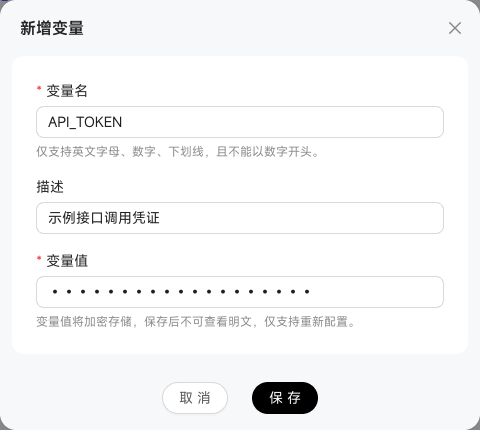
- "$ Insert Variable": type
$in the SKILL.md editing area to bring up the variable list. After selecting a variable, the system inserts the corresponding reference automatically, for example${SKILL_SECRET.variable_name}. - "Reconfigure": update an existing variable's secret value in the variable management panel; the variable name and its references in files don't need to change.
- "Delete Variable": delete variables no longer in use. If the Skill file still references the variable, adjust that first.
Smart Variable Check
If you're unsure whether the Skill file contains plain-text AKs, tokens, or passwords, or you've created variables but aren't sure they're referenced correctly, use "Smart Variable Check."
Smart Variable Check scans the entire Skill, identifies plain-text secrets along with problems in variable references and reads, and completes the necessary variable configuration and file changes based on the Skill's current content. The check only touches content related to sensitive information and variable usage; it doesn't modify other business logic.
Depending on your current setup, there are a few ways to use it:
- Fully manual configuration: if you're comfortable with variable configuration and code, "Add Variable" yourself and complete the variable reads and references in the relevant files.
- Create the variables first, then let Smart Variable Check handle the files: if you already know which secrets need to be held, add the variables first and then click "Smart Variable Check." The system identifies existing variables and unfinished variable usage in the files, then completes the file changes and validation.
- Let Smart Variable Check handle everything: if you're unsure what sensitive information the Skill contains or how different files should use variables, just click "Smart Variable Check." The system scans the Skill files, identifies the sensitive information to handle, reuses existing variables or adds new ones, and completes the file changes and validation.