
Quote and Add Follow-up Messages
In a long Chat, quoting a message helps the Digital Worker identify which part you want to supplement or change. Quote an entire message or select a passage and reply with a quote.
Choose Quote from the message's action menu, or select text and use the quote action. Then add your requirements in the input box and send. A single quote can contain up to 2,000 characters. If it exceeds the limit, narrow your selection or split it into multiple messages.
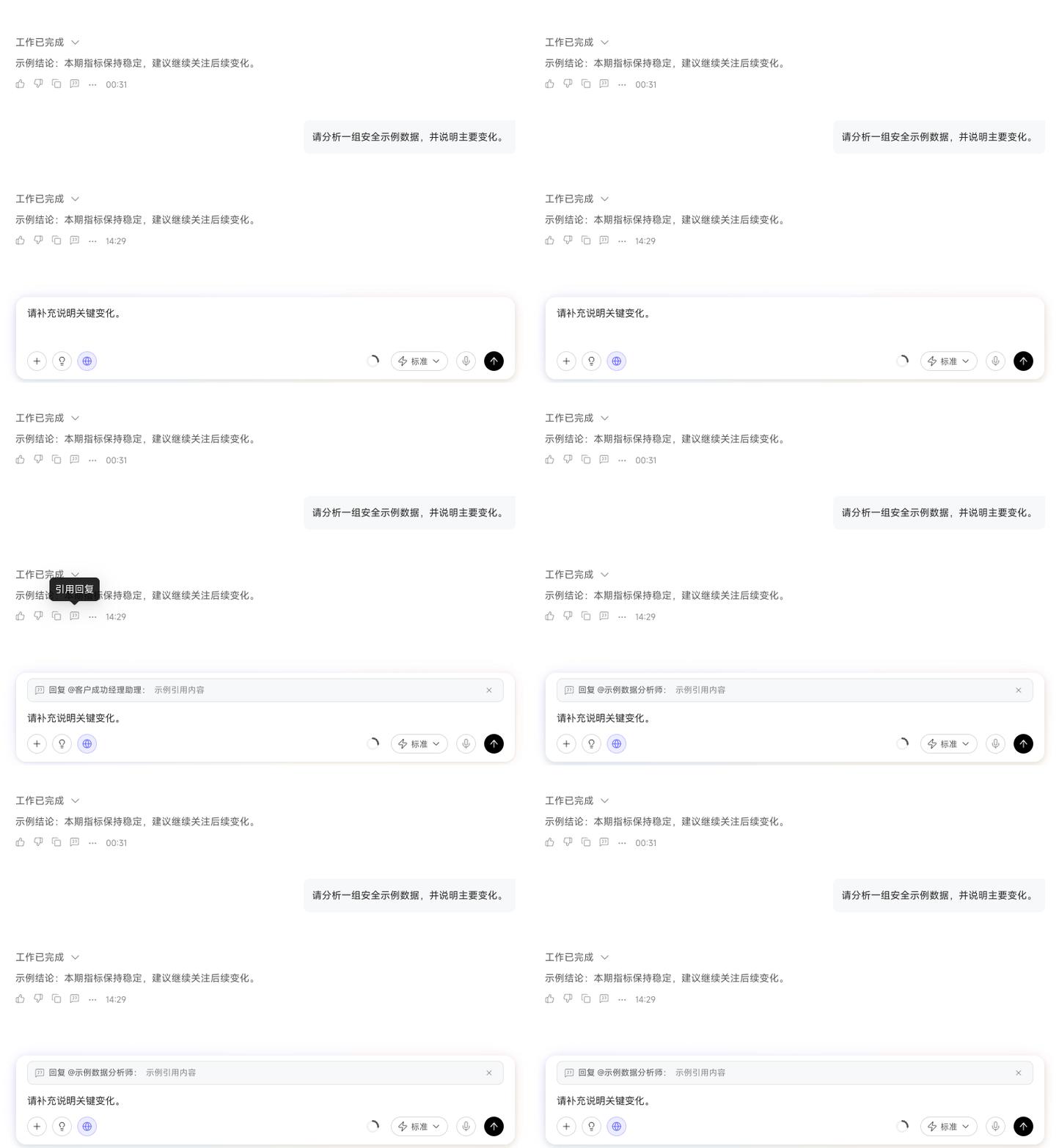
Quoting identifies context; it does not automatically modify the original message. To correct a conclusion, state what is wrong, provide the correct information, and specify what the Digital Worker should rework.
Continue a new Chat from a selected response
Keep the current Chat's conclusions and explore another direction from a completed response.
Click Create New Chat from Here in the target response's action bar.
Select Quick Q&A or Deep Work. Digital Worker teams can use only Deep Work.
Click Create New Chat. The new Chat includes questions and answers through the selected response, excluding later messages. Subsequent conversations remain separate and do not rewrite the original Chat.