
Use the Assistant Panel
The Assistant Panel brings together content related to your current work. Set a work goal so Digital Workers can organize recommendations around it. You can also follow frequently used objects and add them to a new chat as references with one click.
The panel includes tabs such as “Following,” “Knowledge,” and “Capabilities.” View followed objects under “Following,” find available resources under “Knowledge,” and browse Skills and apps under “Capabilities.” “Related Digital Workers” supports multiple selections so you can view only the role Skills, role app connections, and Enterprise Knowledge Bases related to selected workers.
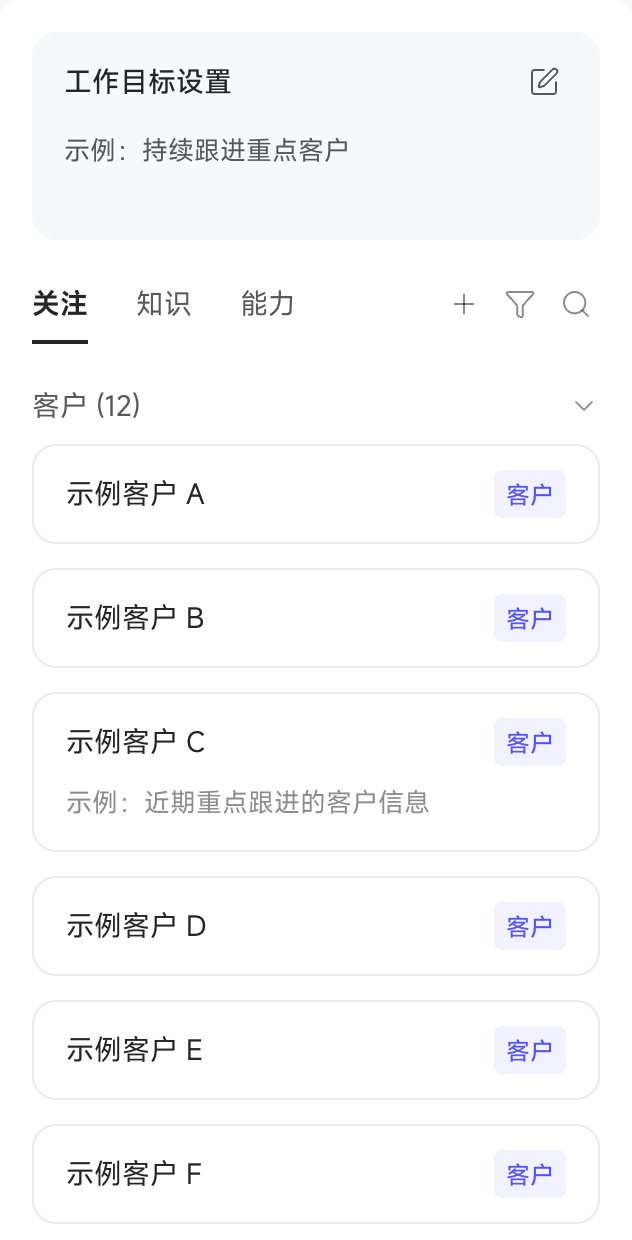
After selecting a resource or capability in the panel, return to the input area, explain how it should be used in the task, and start the chat.
View and Maintain Object Memory
On the “Following” tab, select a business object, click “View Details,” and switch to “Object Memory.” The overview shows long-term information automatically integrated from the object’s raw memories and is used first when a chat matches the object. “Raw Memory” retains the original text or file entries for source tracing and on-demand retrieval.
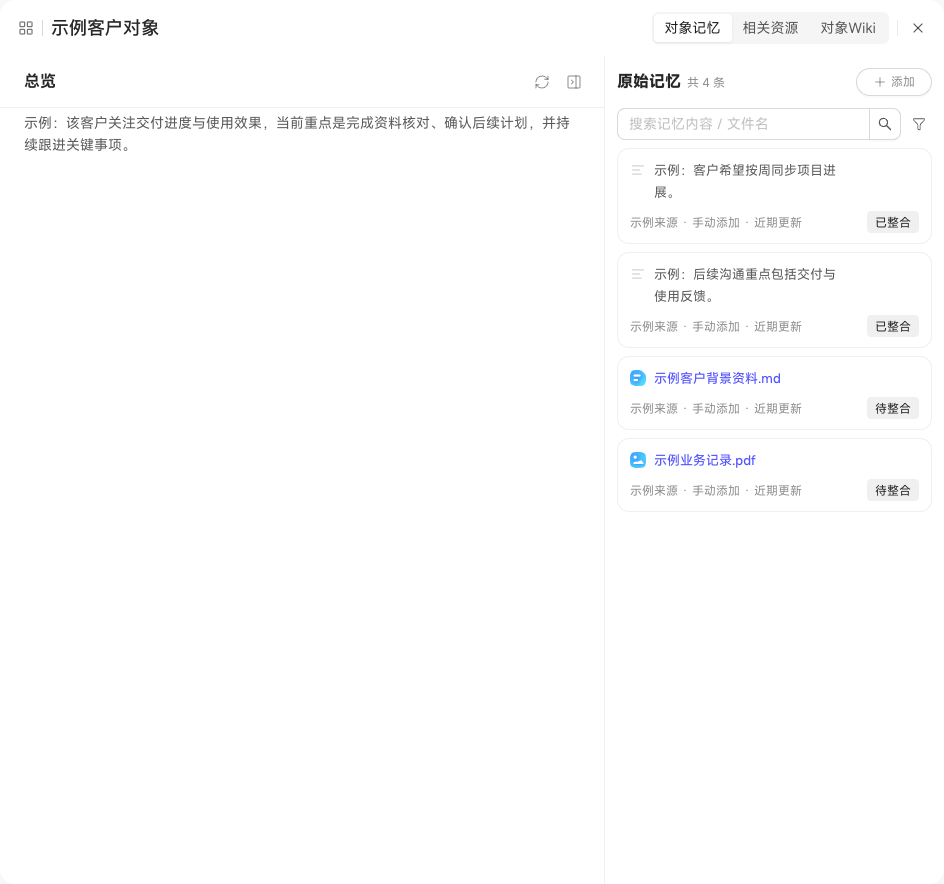
Add Memory and Review Processing Status
Click “Add Memory” and choose text or files, or say “Remember … about this object” in a chat. A text memory can contain up to 2,000 characters. Add up to 10 files at a time, each no larger than 500 MB, with one shared file description if needed. Raw memories are ordered by their latest update time. Open a file for details and to see whether it is Waiting to Parse, Parsing, Parsing Failed, Waiting to Integrate, or Integrated. Only successfully parsed files are integrated into the overview.
Understand Permissions and Automatic Updates
Adding, changing, or deleting raw memories automatically refreshes the overview; no manual re-integration is needed. Members who can access the object can view all of its memories. Only users with write access to the object can add memories, and users can modify or delete only text memories they added themselves. Once deleted, a memory no longer contributes to the overview.
Reference and Trace Object Memory
Select text in the overview to add it directly to a chat for follow-up questions or further changes. A memory added through a chat can also jump back to the original chat to restore context, unless that chat has been deleted.
Understand Permissions and Automatic Updates
Adding, changing, or deleting raw memories automatically refreshes the overview; no manual re-integration is needed. Anyone with view permission for the object can see all memories, but each person can modify only the memories they added.