
Column Level
How It Works
Row-level permissions govern "which rows are visible," column-level permissions govern "which attribute values are visible"—the two are orthogonal and don't override each other.
Attributes matched by a column-level rule aren't returned in conversation answers, analysis views, outputs, or exports—no need to configure it separately in every Skill.
The governed target can be an attribute of an object type or an attribute of an analysis view.
Rule List
The list displays Rule Name, Effective Scope, Permission Rule, Applies To, Modified By, Modified Time, and Status.
"Effective Scope" is presented according to the scope mode: specified-attribute mode shows "object type · attribute" tags with any overflow collapsed as +N (hover to see them all); attribute-name-matching mode shows a "Name Match" tag with a sub-line summarizing "N attributes · M graphs."
"Status" is the enable/disable toggle, and rules are enabled or disabled on this page; disabled rule names are grayed out to distinguish them from enabled ones.
Rows can be edited or deleted. Deletion requires confirmation, and matched attributes immediately return to showing their original values afterward.
Configuring a Rule
Click "Add" to open the rule form and fill in four sections: "Rule Name → Permission Rule → Set Rule → Applies To." The rule name is required, up to 64 characters, and must be unique within the tenant (case-insensitive).
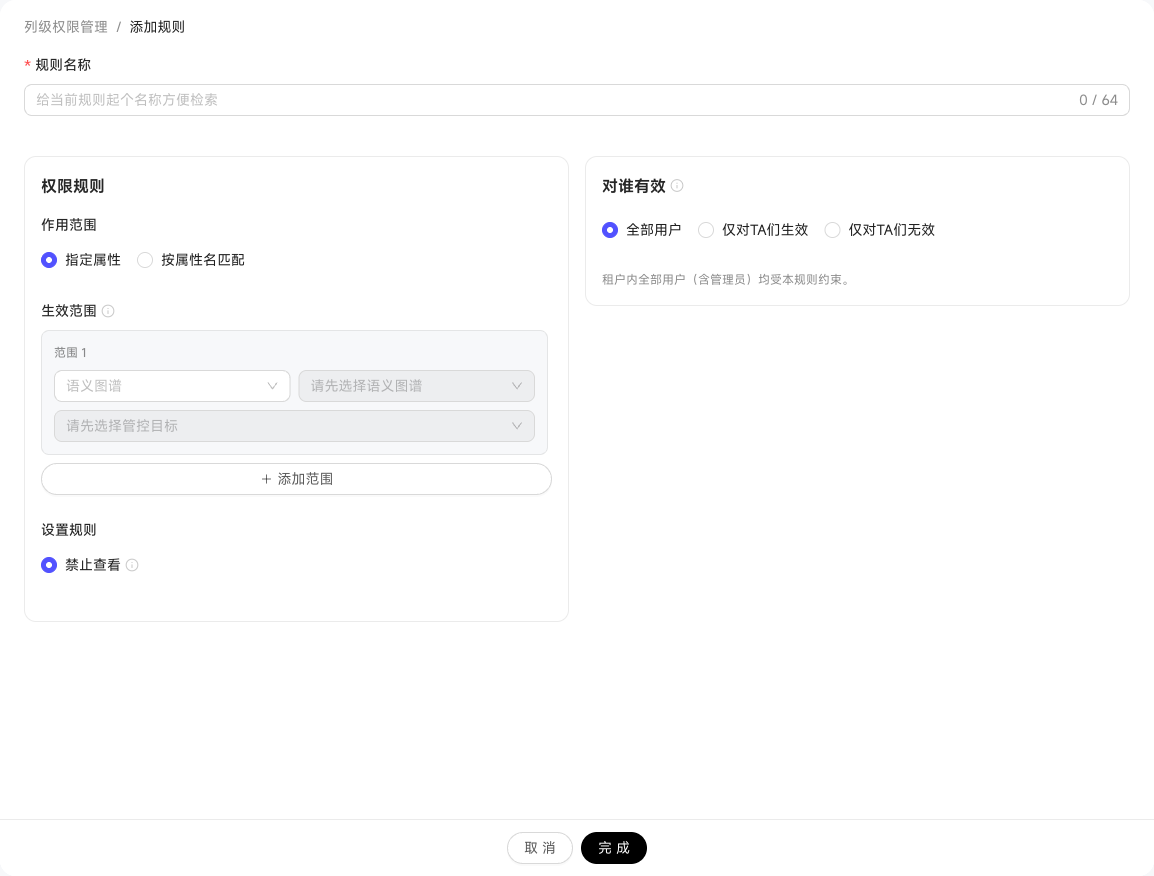
In the "Permission Rule" section, first choose the scope; the two modes are mutually exclusive:
| Mode | How to configure | Best for |
|---|---|---|
| Specified attributes (default) | Select item by item through the three-level cascade "semantic graph → governed target → attribute," where the governed target can be an object type or an analysis view; "Add Scope" allows multiple entries, covering several graphs and differently named equivalents (such as a customer's phone and a contact's mobile) | A well-defined scope with an enumerable number of attributes |
| Attribute name matching | Choose the graph scope (multi-select, or "all graphs"), then enter attribute names separated by commas, matched exactly against the full attribute name and case-insensitively; the form shows the number of matched attributes and graphs in real time, and the details can be expanded and checked item by item | The same attribute name is scattered across multiple graphs, and you want future attributes with that name governed automatically |
"Attribute name matching" only recognizes full attribute names—entering phone won't match mobile_phone, so for differently named equivalents either list every name or switch to "specified attributes."
"Set Rule" currently offers Deny View: matched attributes are entirely invisible to the selected audience and aren't returned in conversation answers, analysis views, outputs, or exports.
"Applies To" is single-select, and the audience follows the "authorization subject" system (user / role / user group):
| Option | Effect |
|---|---|
| All users | Every user in the tenant (including admins) is bound by this rule |
| Only for them | Only the selected subjects are bound; everyone else sees the original values |
| Except for them | The selected subjects are exempt; everyone else can't view the matched attributes |
The latter two options require specifying authorization subjects; submission isn't allowed without them.
Checking the Result per Person
Rules are organized by "attribute," but when troubleshooting you usually need to look per "person"—when a colleague says they can't see a phone number, you need to know which rules matched them. That view lives on the "Attribute View Permissions" tab of "Semantic Permissions": select an authorization subject to see every column-level rule that matches them and the resulting effect. See Semantic Permissions for details.
When one attribute is matched by several rules, a hint icon appears there, and hovering explains the actual outcome by priority.