
View Execution Records and Outputs
Choose a tab on the Automated Tasks page based on the work you want to complete.
| Tab | Purpose |
|---|---|
| My Tasks | View tasks you created or tasks distributed to you. |
| Execution Records | Check the status and results of each run. |
| Task Templates | Maintain reusable enterprise task configurations if you have enterprise template management permission. |
| Distributed by Me | Configure distributed tasks centrally and check recipients' enablement and authorization statuses. |
Each execution record shows its time, status (Success, Failed, Pending, Running, or Terminated), Output files, and logs. Open it to see the full reasoning, tool calls, and Outputs, with the same visibility as a live Chat.
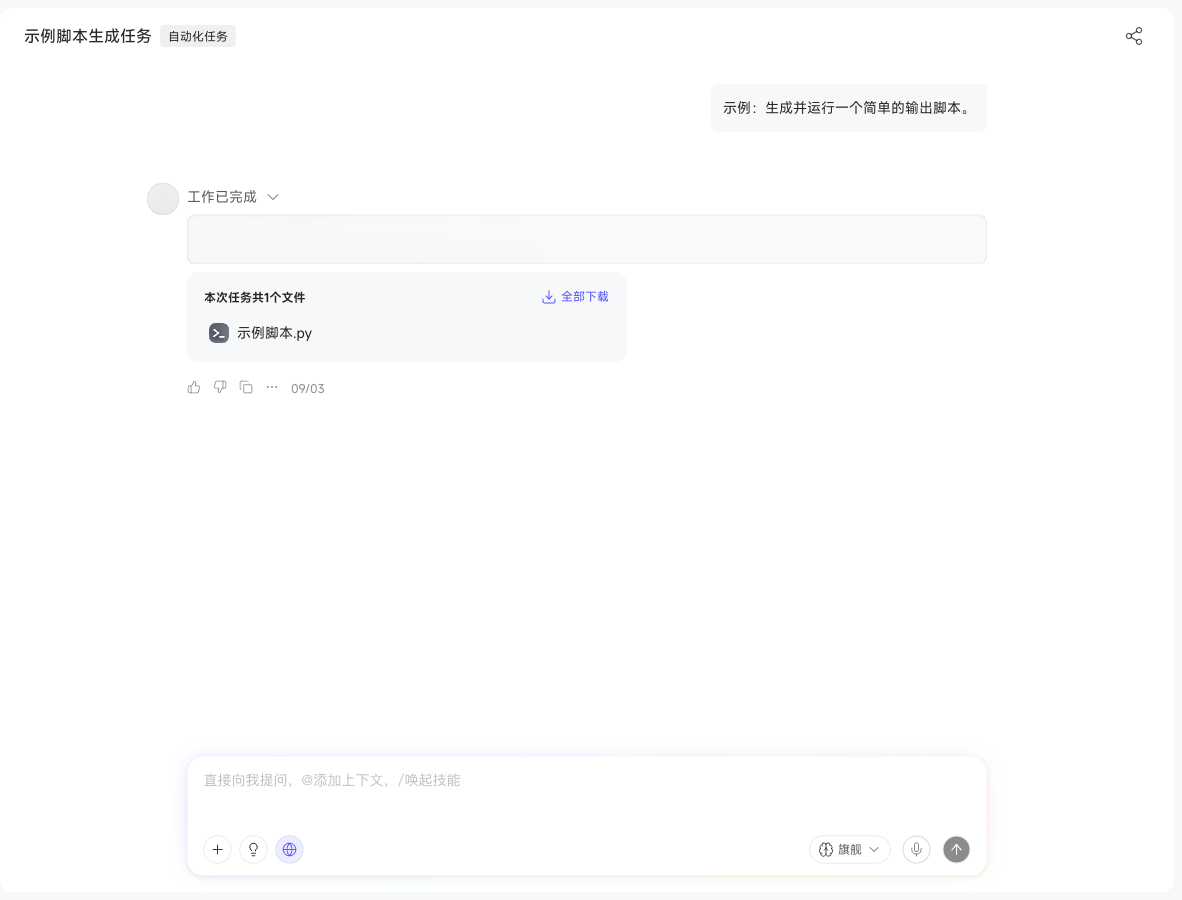
A small blue dot beside the task name marks unread execution records so you can find new results quickly.
The first line identifies the trigger for that run: manual execution, scheduled execution, or external notification. The task card lists all configured schedules, making the initiating trigger clear for tasks with multiple schedules.
Continue a Conversation about Outputs
Select "Continue Chat" on automated task results to ask for details or further analysis, just as in a regular conversation.