
Share
Sharing: From Private to Collaborative
WinNexo provides 3 levels of sharing, from broad to granular:
1. Share Conversation
Share an entire conversation as "story + deliverables" with colleagues. They can see the full context: what you asked → how AI reasoned → what materials were used → what files were produced.
| Setting | Options |
|---|---|
| Visibility | Public link (anyone with link can view) / Specified people only (by user or user group) |
| Include Output Files | Include / Don't include |
| Output File Permission | View only / Editable |
| Include Uploaded Materials | Only available in "Specified people" mode; public links don't share uploaded temporary files by default |
2. Share Single Output File
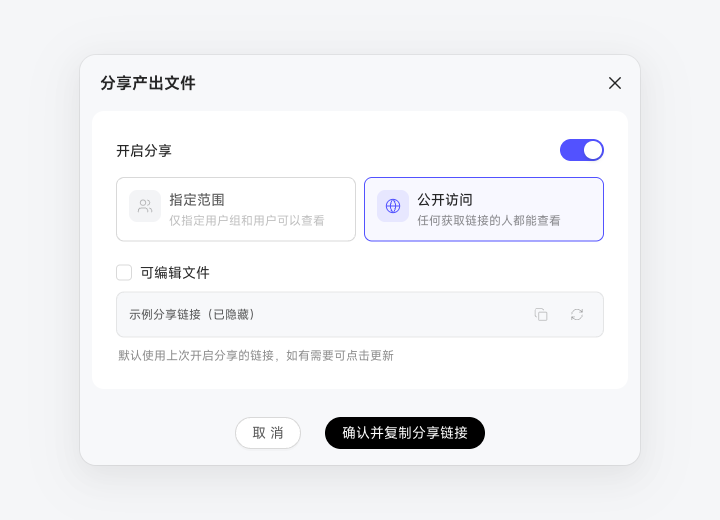
If you only want to send a specific file (without conversation context) — enable sharing directly on the output file:
Find the target file in "My Outputs" or the "Related Files" panel in conversation.
Click "Enable Sharing" in the top-right of the file card → configure visibility (Public link / Specified people only).
In editable mode, the other person can edit directly in the shared link — you and they see the same file.
A short link is generated — paste it directly in IM, email, or documents.
3. Share Channel
At the highest level, share an already configured IM Channel with colleagues. They do not need to pair again or reselect Digital Workers; the Channel appears directly on their Chats page and works after one pairing. See Share Content to a Channel.
Public Link vs. Specified People Only
Core differences between the two sharing modes:
| Dimension | Public Link | Specified People Only |
|---|---|---|
| Who Can View | Anyone who obtains the link | Only members/user groups on the list |
| Link Control | Link is considered public once shared externally | Even if link is forwarded, people not on the list cannot open it |
| Typical Scenarios | External demos, product intros, white papers | Customer lists, internal data, trade secrets |
| Include Uploaded Materials | Don't include by default (avoid leaks) | Optional |
| Revocation | Turn off sharing toggle, link immediately invalidated | Same |