
Allocate Task Concurrency
Reserve execution capacity for Chats and automated tasks
Under "Personal Settings > Task Concurrency", enable "Allocate by Task Type" to reserve simultaneous execution capacity for personal Chats and automated tasks separately, preventing either type from occupying all resources.
Set concurrency percentages for both types by time period. Each period must total 100%. You can configure up to six periods that continuously cover 00:00–24:00 without overlap. Changes take effect after saving.
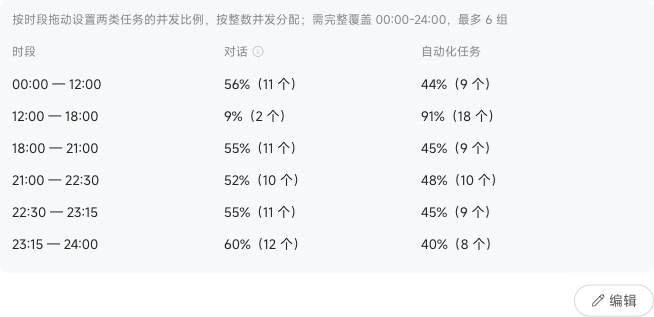
Your license determines the total available concurrency; you cannot increase it here. These settings apply to personal mode, not collaboration mode.
What happens when concurrency is full
Automated tasks triggered by schedules, events, or external notifications wait when concurrency is full and start automatically when earlier tasks finish. Tasks submitted in a Chat do not run in that round; a system message says "Task concurrency is currently full. Please wait." Retry later or click "Task Dashboard" in the message to view waiting tasks. Manually executed tasks fail when concurrency is full and must be retried later.
Waiting automated tasks also have execution records. Open their details to check the waiting status. To reallocate capacity, open "Personal Settings > Task Concurrency" on desktop. This queue covers the current user's personal-mode tasks, excluding collaboration tasks. The waiting queue is unavailable on mobile.
Which work uses Chat capacity
Questions in personal Chats and Skill shortcut tasks started from Skill pages both use "Chat" concurrency. Account for both when allocating capacity.