
Publish and Manage Skills
The Admin Console Skill Center supports viewing, editing, and status management. Available actions depend on Skill type:
| Skill type | Supported actions | Description |
|---|---|---|
| Built-in Skills | Details, Edit Basic Information, Associate Positions, Disable/Enable | Provided by the platform. Names and descriptions cannot be changed, but availability and associated positions can be adjusted. |
| Custom Skills | Details, Edit Skill, Edit Basic Information, Take Offline, Manage Associations | Created by the enterprise. View and edit them, or take them offline when no longer needed. |
Built-in Skill categories
Built-in Skills are categorized by default as Public within the Enterprise or Position-Specific. Adjust availability in Edit Basic Information to match enterprise use.
Public within the Enterprise: General-purpose scenarios such as Excel processing. No position association is required, and all enterprise users can use the Skill.
Position-Specific: Specialized position or industry scenarios. Associate positions before use. After selecting this scope, use Associate Positions to specify which positions can invoke it.
Custom Skills provide these management actions:
| Entry | Purpose |
|---|---|
| Skill Details | View files, version history, and associated positions |
| Edit Skill | Open the full editor to adjust inputs, workflow, and Output configuration |
| Edit Basic Information | Change the name, description, tags, availability, and other basic settings |
| Take Offline | Equivalent to deleting the Skill; it is no longer visible or callable |
Debug Skills
Enter a question in Quick Debug on the Skill workspace, then optionally add Expected Output. Provide text, formatting or structural requirements, or upload a reference file.
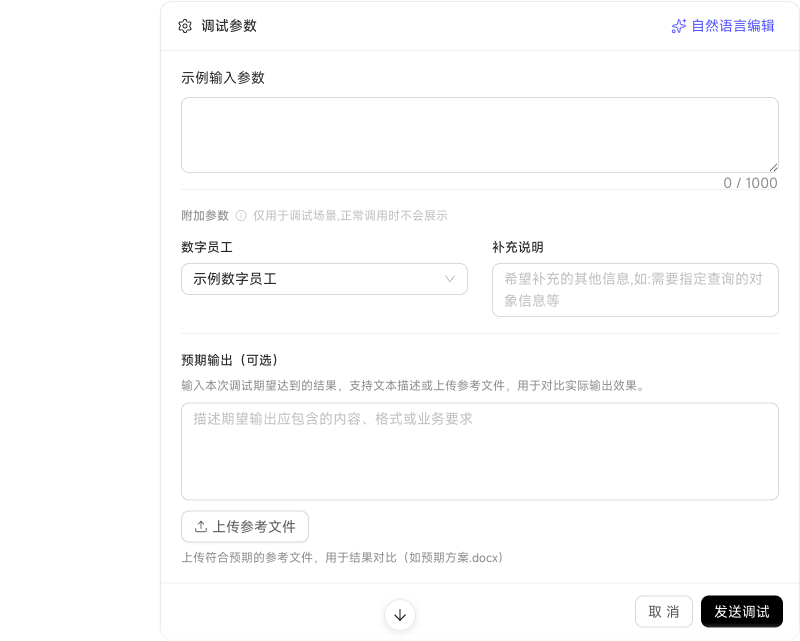
After debugging, results are compared with the expected Output. The comparison identifies completed requirements and remaining gaps in content, steps, or format, and recommends capabilities, workflow improvements, or input/output specification changes.
In Skill Parameter Configuration, describe parameters to add, modify, or remove. The workspace shortcut form updates accordingly and takes effect after publishing; the Skill body is unchanged.
Configure enterprise templates for PPT Generation
PPT Generation supports enterprise presentation templates. Administrators can upload templates for users to select when generating presentations, ensuring consistent enterprise visuals and layouts.
Configure multiple templates with names and descriptions so users can choose an appropriate one.
Drafts and publishing
Saving and publishing custom enterprise Skills are separate actions. Saving updates only the draft, leaving the published version in use unchanged. Cards indicate unpublished changes. In Update Skill, after uploading a new file, choose Save Update to update only the draft, effective after publishing, or Publish Directly to immediately replace the published version and clear the draft.
Publication security review
Clicking Publish displays a notice that security review will follow. Review takes time, and approved Skills publish automatically. You can continue editing during review, but new changes are excluded from that review round. The same version cannot be submitted twice.
Skill cards display the review status:
| Situation | Card display | Callable? |
|---|---|---|
| First publication under review | Under Review | No |
| Published; new version under review | Published Version Available · New Version Under Review | Yes, using the published version |
| First publication review failed | Review Failed | No; revise and resubmit |
| Published; new version review failed | Published Version Available · New Version Review Failed | Yes; the published version is unaffected |
Approval displays "Skill review passed and published" in the upper right. If review fails, inspect Review Risks, revise, and resubmit. The list sorts failed reviews, active security reviews, published Skills, then drafts, placing items needing attention first.