
Create a Position
Click "Create Position" in the upper right to open the form:
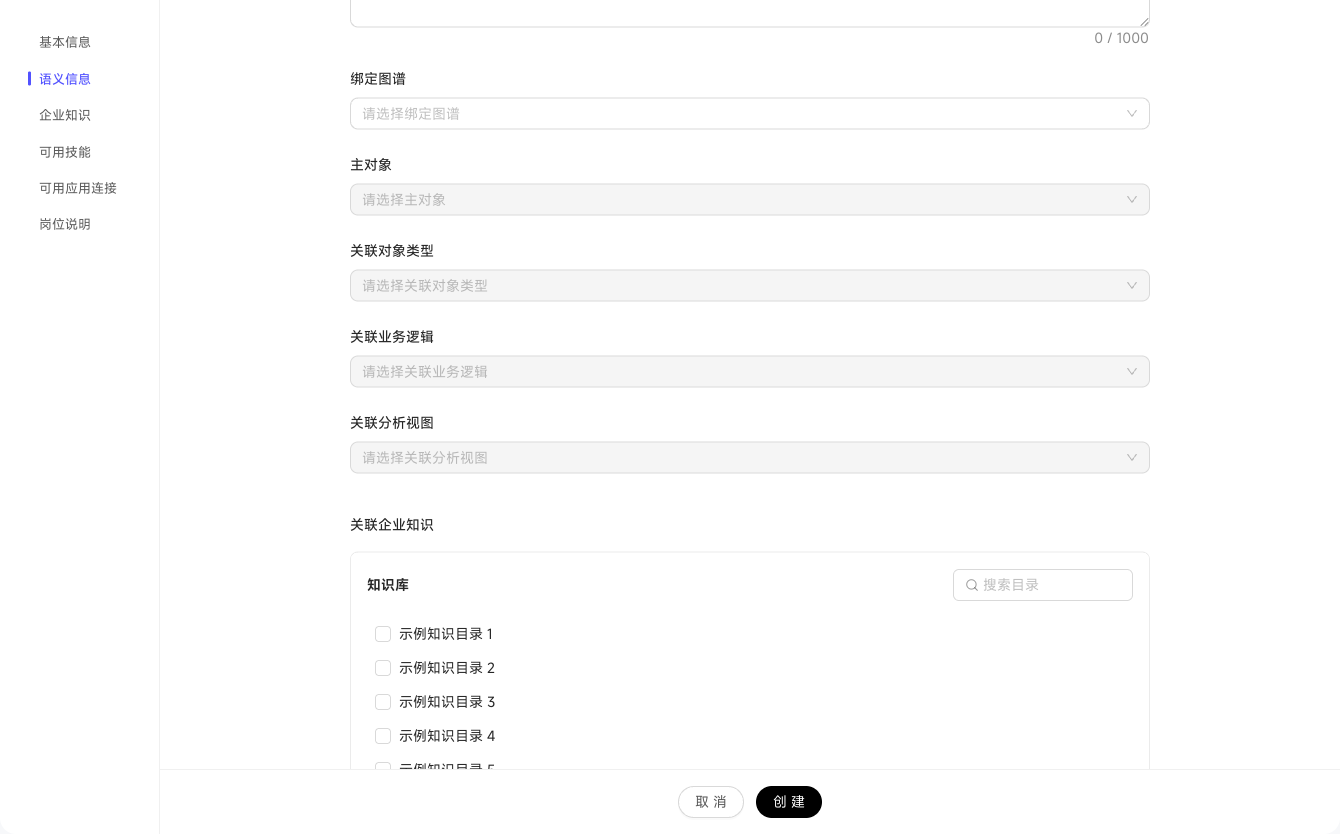
Enter a position name (an internal identifier starting with a letter and containing only lowercase letters, numbers, underscores, and hyphens), a Chinese display name visible to users, an avatar, and a description of the business scenario, core goal, and intended users.
Select a published Semantic Center graph from "Linked Graph", choose a "Primary Object" such as Customer, select related object types such as Orders and Visit Records, and associate Business Logic and Analysis Views as needed.
Open the knowledge directory tree and select directories the position can search. Users authorized for the position can indirectly read this content, so do not authorize directories containing sensitive information.
Choose Skills from the enterprise Skill Center. They appear in the position's chat input and can be invoked by typing `/`.
Select up to six "Recommended Workspace Skills" from the available Skills and arrange their order. Users see these first when starting a new Chat.
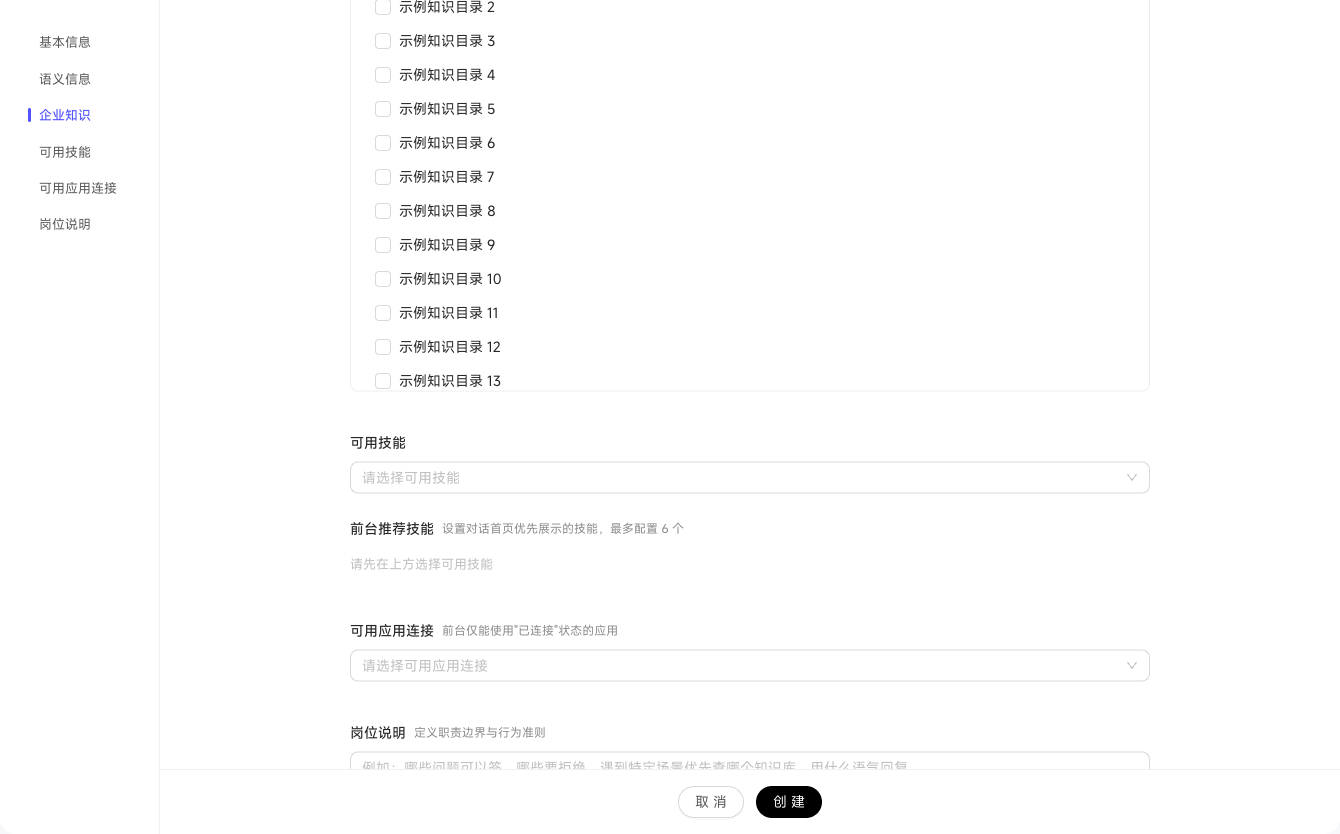
Select app connections the position can invoke. Only apps with "Connected" status are usable in the workspace.
Use up to 10,000 characters to define responsibilities and behavior. For example: "Handle customer follow-ups and daily reports for the sales team; check the compliance Knowledge Base before answering compliance questions; respond in concise Chinese."
After saving, the position appears in the card list immediately, but users need authorization before they can use it.
In "Authorization Management" on the position details page, choose which users or groups can use the position. Only authorized users can select it in the workspace and start Chats.
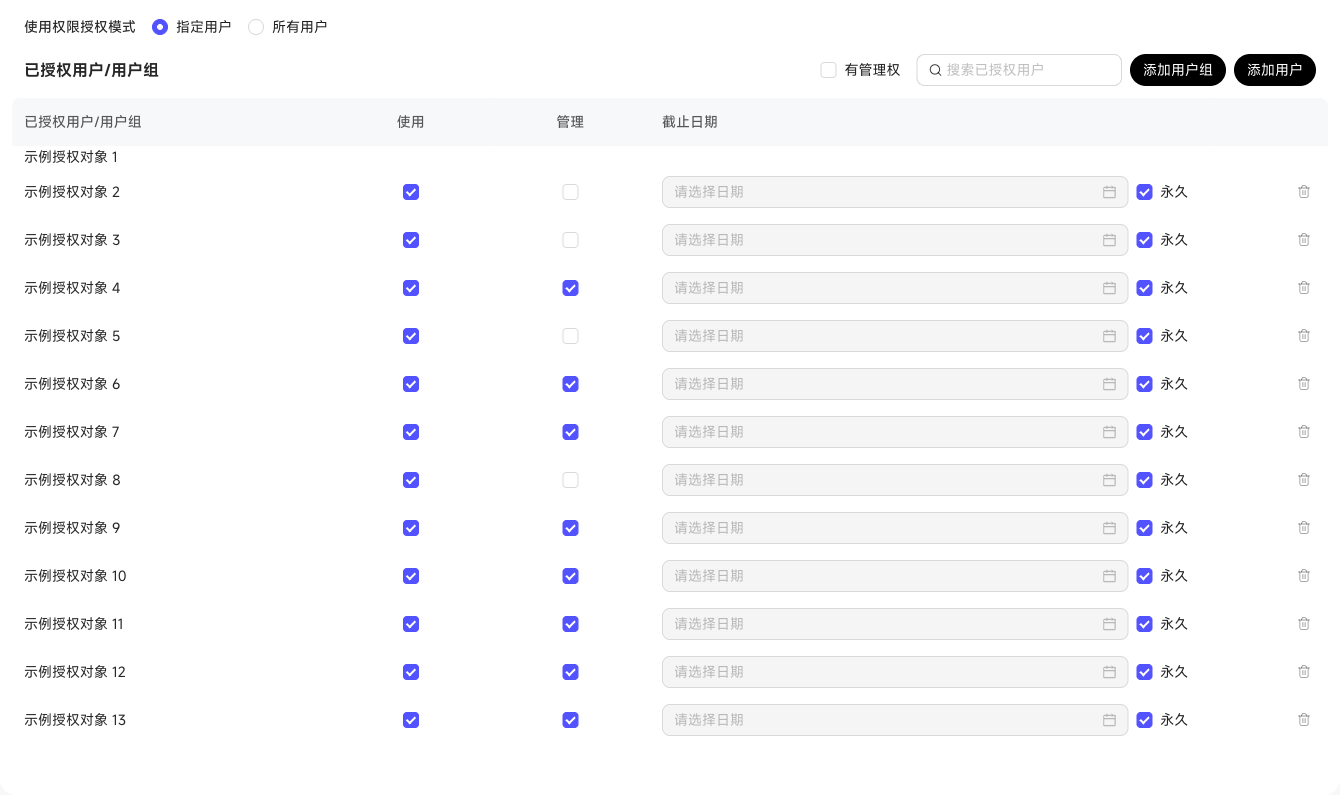
Understand authorization boundaries
Position Authorization Management determines who can use the position. Row-level permissions determine which data rows those users can see. Check both layers when configuring access; position authorization does not replace Data Permissions.