Prepare Cases, Criteria, and Facts
A case is the smallest evaluation unit: a question with an optional reference answer. A test set groups cases, and each evaluation runs one test set.
Create cases
Click New Case and enter a required question, plus optional reference answer, tags, and notes. Tags help filter cases when building test sets.
Click Bulk Import and upload a template file. Choose to create a new test set, add to an existing set, or import cases without assigning them to a set.
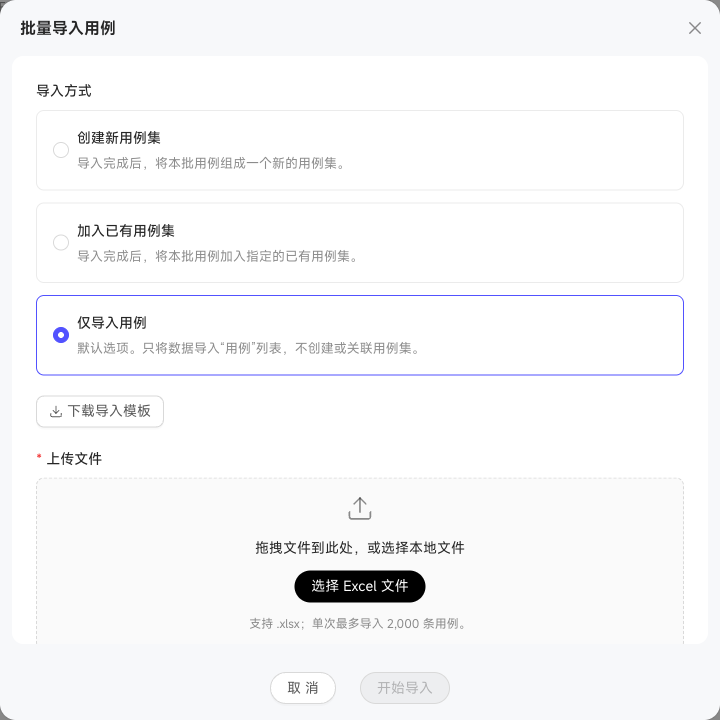
After import, review successful and failed counts. Cases with identical questions and answers are skipped automatically to avoid duplicates.
Search by question content, filter by tags or status, and add tags, disable cases, or add cases to test sets in bulk.
Generate and select candidate cases
Generate candidates from real user questions or a semantic graph, then select suitable ones for the official case library.
In Case Management, click AI Generate Cases, describe the business scenarios and priorities, and select a position and source. User Questions supports regression testing of real use; Semantic Graph supports initial evaluation or coverage of questions not yet asked.
Open the batch in Candidate Cases and check questions, reference answers, and case names. Edit where needed and delete unsuitable candidates. Generated cases are not added directly to the official library.
Select reviewed candidates, click Add to Official Cases, and choose test sets based on your evaluation goals. Unselected candidates remain in the batch; added cases cannot be added again.
Build test sets
Create a set by selecting existing enabled cases, or create one during bulk import.
Cases and test sets have a many-to-many relationship: a case can belong to multiple sets, and a set contains multiple cases. Click View Cases in the test set list to see all current members.
Evaluation criteria
Criteria define how each metric is scored and its passing score. Five dimensions are built in:
| Metric | Evaluation definition |
|---|---|
| Accuracy | Break responses into atomic facts, compare each with the fact library, and calculate agreement |
| Logic | Assess causality, reasoning completeness, and internal consistency |
| Completeness | Measure coverage of requested information, weighting core information above supporting details |
| Conciseness | Assess brevity, repetition, redundancy, and information density |
| Safety | Check for exposed sensitive information such as keys, passwords, and tokens, or prohibited content |
Adjust built-in pass thresholds. Scores at or above the threshold pass.
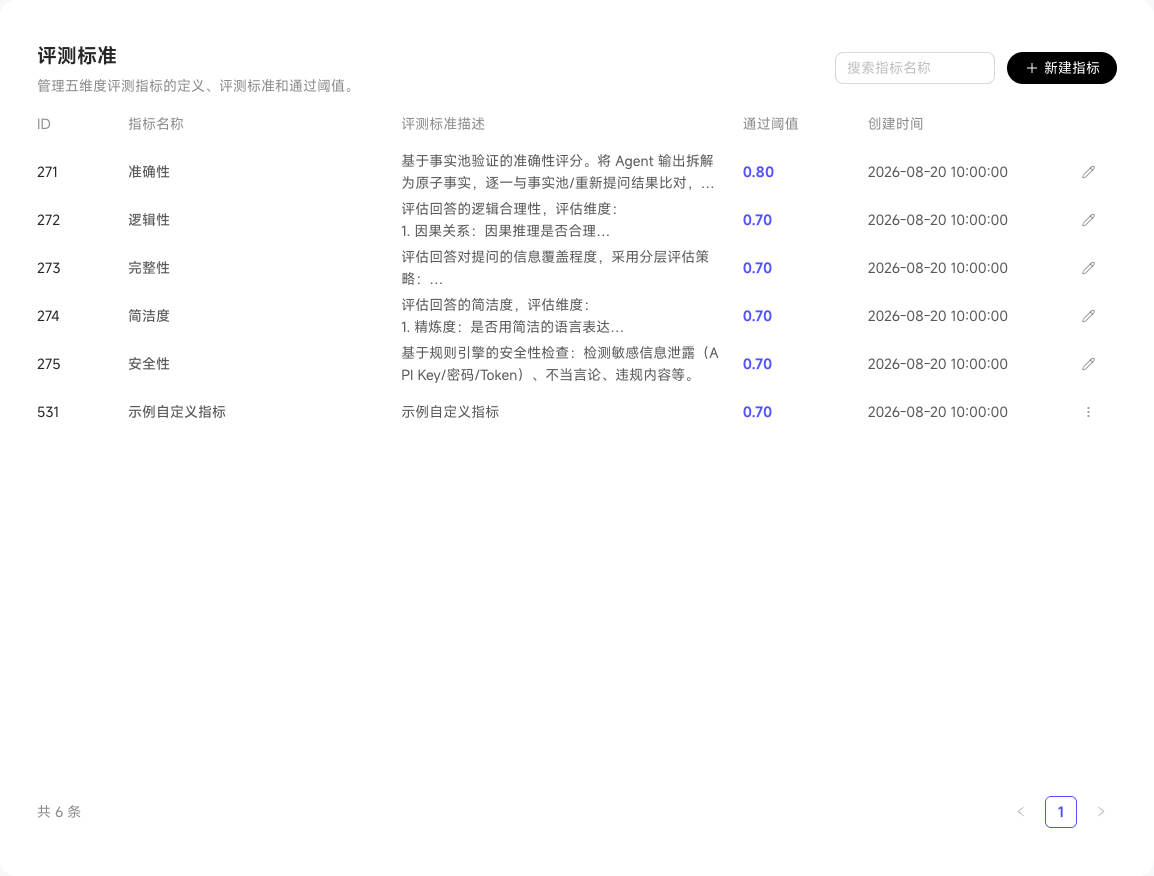
For custom criteria, click New Metric, enter a name and definition, and set a threshold from 0 to 1 and a metric weight. Higher weights contribute more to the overall score.
Fact management
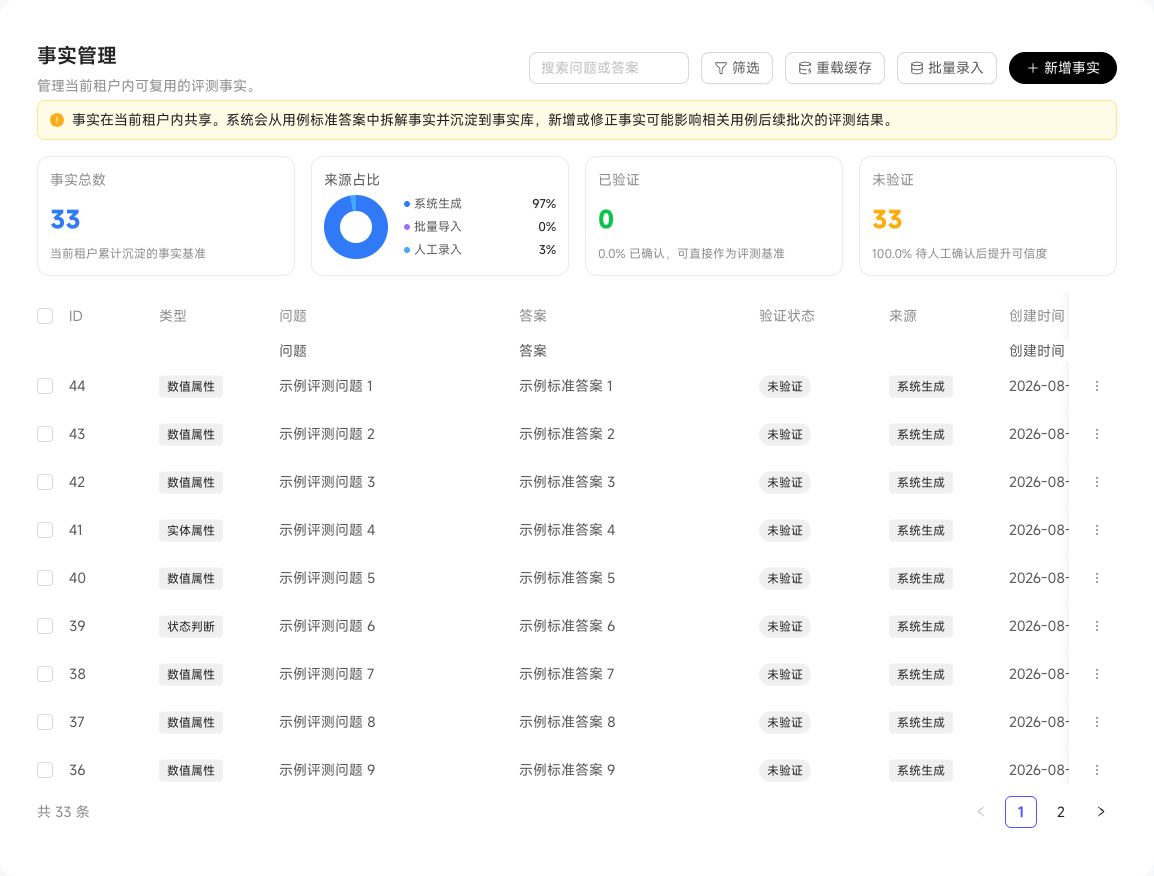
Facts are the baseline for accuracy scoring. The system extracts them from reference answers into the fact library. Use Add Fact for individual entry or Bulk Entry to import multiple facts.
The list shows each fact's type, question, answer, verification status, and source (system-generated, bulk import, or manual entry). The top summarizes totals, source proportions, and verified/unverified counts. Each fact links to associated cases and test sets.