
Manage Attributes and User Attributes
Attribute Configuration
Attribute Management defines "which fields can be attached to a user" and is the value source for row-level data permissions—define attributes here first, fill in values per person under "User Attribute Management," and data permission rules can then reference those attributes for row-level filtering.
The list shows Attribute Name, Code, Attribute Description, Attribute Source, and Input Method. Attribute sources are either system built-in or custom; input methods are either system-generated or manual entry.
System built-in attributes are available out of the box, such as WinNexO_UID (the user's unique identifier in WinNexo), Source_UID (the user's UID in the SSO system), and username—all system-generated and not editable. For dimensions your business needs (such as "data permission," "region," or "product line"), use "Add" to create a custom attribute with manual entry as the input method.
User Attribute Management
Once attributes are defined, fill in values for specific people here. The first column of the table is Username, and each subsequent column corresponds to an attribute defined under "Attribute Configuration"—when the attribute definitions change, these columns change with them.
You can search by keyword to locate a member and use "Column Settings" to control which attribute columns are shown. With many members, there's no need to edit one by one: use "Import/Export" to export a template, fill it in bulk, and import it back.
User Attributes: Input Signal for Row-Level Permissions
To create rules like "view data by user region", the system first needs to know "each user's region." That's what user attributes are for.
Three Input Methods
Each attribute must specify "where the value comes from":
| Input Method | Meaning | Applicable Scenarios |
|---|---|---|
| System Generated | System auto-fills (e.g., user_id, login_count) | Built-in attributes, no action needed |
| External System Reference | Pulled from a field in a table from a data source | HR system already has "region" and "department" fields—just reference them |
| Manual Input | Admin directly fills in on the user management page | Temporary tagging, pilot project grouping |
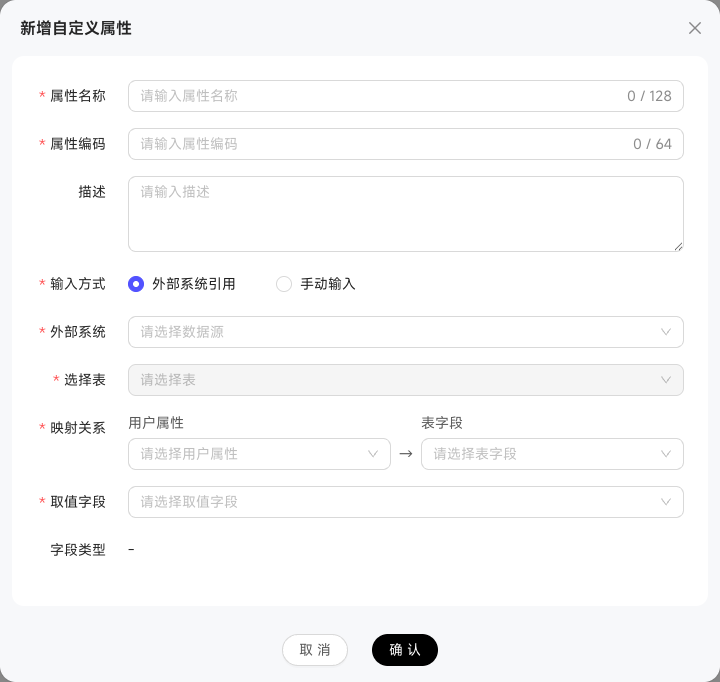
When configuring External System Reference, select data source + table + mapping relationship (User.employee_id ↔ Table.employee_number) + value field (e.g., region), and the system will auto-sync based on the mapping.
Associate Manual Attributes with External Data
Under "User Management → Attribute Configuration", enable "Allow External Association" for a manual-input attribute, then use it in user mappings for "External System Reference". For example, maintain members' employee numbers and use them to associate region information from an external table.
Once a manual attribute is referenced, remove all external references before disabling "Allow External Association", deleting the attribute, or changing its input method. Turning off the switch does not clear existing attribute values.
Custom Attributes
Beyond system built-in attributes (username, email, organization), admins can add custom attributes in User Management → Attribute Configuration:
Fill in attribute name (e.g., "Region"), attribute code (must start with English, e.g., region), description.
Choose "External System Reference" → select data source (e.g., HR MySQL) → select table (employee) → configure mapping.
Pick a column from the selected table as the attribute value source (e.g., region column); specify field type as "text" or "numeric".
After saving, the attribute automatically appears in the user list columns and becomes selectable when configuring rules.
Batch Update User Attributes
Manual-input attributes can be batch-edited:
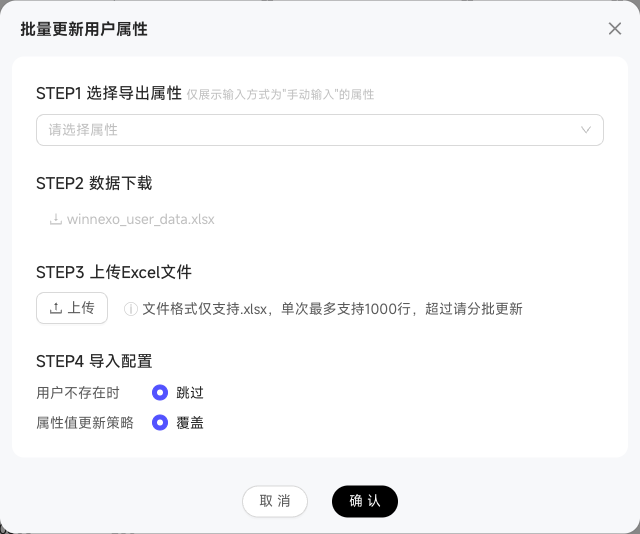
Check the attributes to batch update. Only attributes with "Manual Input" input method are shown.
System generates winnexo_user_data.xlsx containing current values for selected attributes.
Edit in Excel, then re-upload. File format supports .xlsx only, with a maximum of several thousand rows per batch.
Choose "Skip / Error when user doesn't exist" and attribute value update strategy "Skip / Overwrite".