
Create Automated Tasks
WinNexo provides two ways to create tasks. Choose the one that works for you.
Method 1: Create Directly in a Chat (Recommended)
In any Chat, describe what to do and when. WinNexo automatically creates and configures the task for you.
For example: Create an automated task that sends this week's opportunities requiring follow-up to my DingTalk bot every Monday at 9 a.m.
每天早上 9 点跑一份昨日销售数据日报,
重点看 KA 客户的环比变化(涨跌超 10% 标红),
输出 PPT,发送到钉钉「日报组」群。
Method 2: Create through a Form
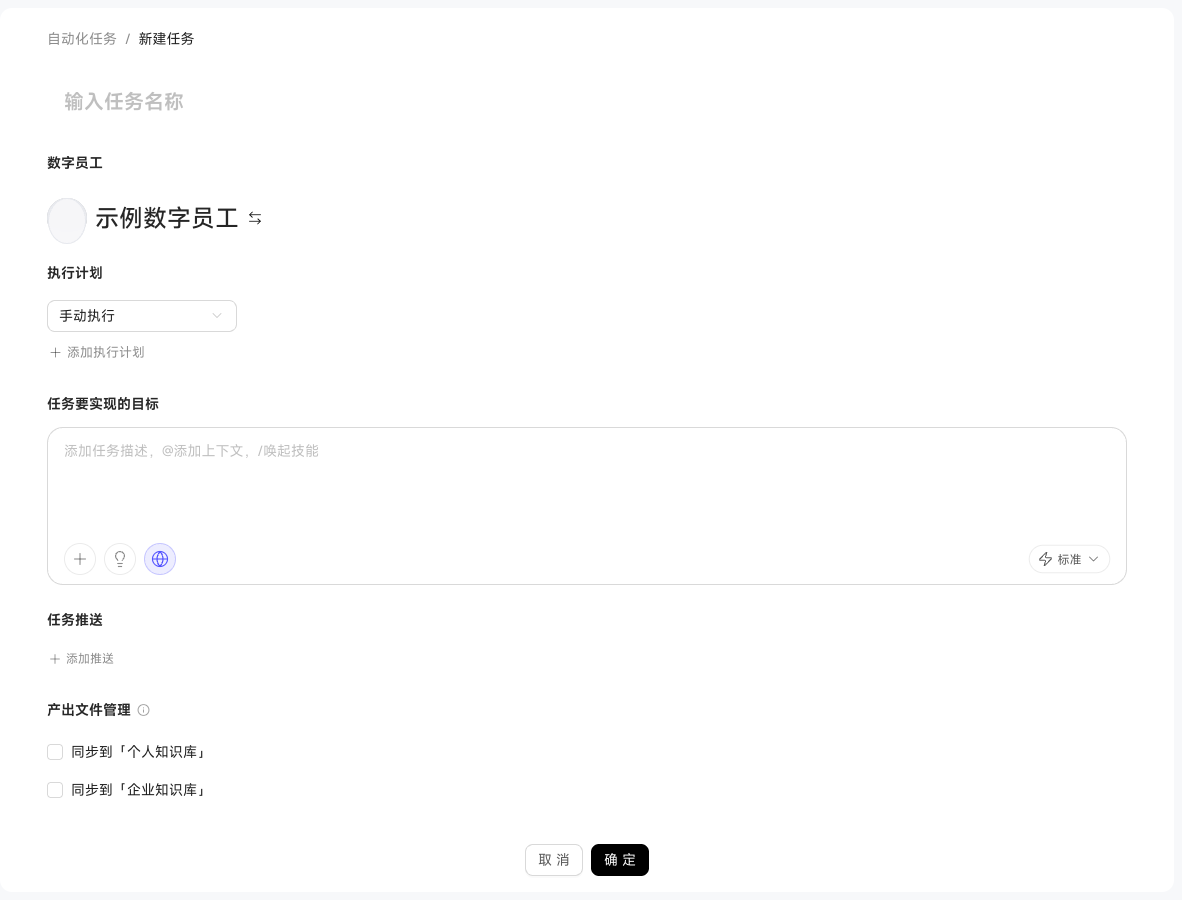
On the Automated Tasks page, click "Add Task" and enter task content and an execution schedule. To use a template, select "Add from Template", choose a template, and click "Start Creating". You can also use "Task Templates" at any point during creation. Edit the filled-in configuration as needed; if it contains object parameters, select specific objects.
Using a template copies its task description once to speed up configuration. No reference relationship is recorded between the task and template, and task edits do not change the enterprise template.
Define the Task Goal
Describe the objects to process, the work goal, and expected Outputs. Use "Optimize Task Description" to improve the wording. If you are not satisfied, undo the optimization to restore your original input.
Select Digital Workers
When creating an automated task, select up to five Digital Workers to form a team. With multiple workers, the lead worker breaks down the task and assigns work to members.
Configure the Execution Schedule
Configure an execution schedule to start work at the following times.
| Trigger | When it runs | Best for |
|---|---|---|
| Manual execution | When you click Run | Testing configuration or an extra run. |
| Scheduled execution | At the configured time | Recurring work such as daily or weekly reports. |
| When something happens | When a subscribed event occurs and its conditions match | Following object changes or IM activity. |
| External notification (webhook) | When an external system calls the task's notification URL | Receiving execution notifications from other business systems. |
Only Scheduled Execution can be added more than once. Each other method can be configured once per task; already configured options are disabled in the dropdown and marked "Added".
To push execution results to IM, enable delivery, select the target channel, and choose a specific channel conversation bot from the "Bot" dropdown. The IM bot must already be bound in the Digital Worker's channel management settings, and your personal account must be paired.
Select "All Replies" or "Output Files Only" as the content to deliver. Files can be sent as "Source Files" or "File Preview Links". For DingTalk and Ali DingTalk bots, File Preview Links require the file preview service to be enabled in the current environment. Otherwise, the option is disabled and a platform administrator must enable the service. Existing task configurations are unaffected; validation occurs when edits are submitted.
If the task generates files, synchronize them to your Personal Knowledge Base or submit them to an Enterprise Knowledge Base through its approval process. Collaboration mode also supports Space Resources. For Personal Knowledge Base synchronization, select "Associated Objects" to organize each run's resources under the relevant business objects.
Each destination supports "Copy" and "Add Link". A copy is a snapshot that later task runs do not overwrite. A link keeps the same file continuously updated on each run, making it suitable for daily and weekly reports.
Click "Run Now" to test immediately, or save and wait for the next scheduled run.