
Configure Execution Schedules
A task can have up to three execution schedules simultaneously. The three trigger methods start work at different times.
| Trigger | When it runs | Description |
|---|---|---|
| Manual | When you click Run | Test the configuration or run an extra execution |
| Scheduled | Automatically at the configured time | Daily, weekly, monthly, or custom Cron; multiple entries supported |
| External notification | When notified by an external system | A dedicated Webhook URL is generated after saving; each call triggers one execution |
Only Scheduled Execution can be added more than once. Each other method can be configured once per task; already configured options are disabled in the dropdown and marked "Added".
Trigger from business events
You can add multiple "Scheduled Execution" and "When Something Happens" entries, but a task can still have at most three schedules in total. The event list shows only published events or templates. Semantic events are filtered by the selected Digital Workers' graph scope; IM events are not restricted by graph scope.
Semantic events are filtered by the graphs available to the task's Digital Workers. Templates whose graph is specified during task creation and IM events unrelated to semantic graphs are exempt from this filter. If no event matches, define and publish one in the Event Center first.
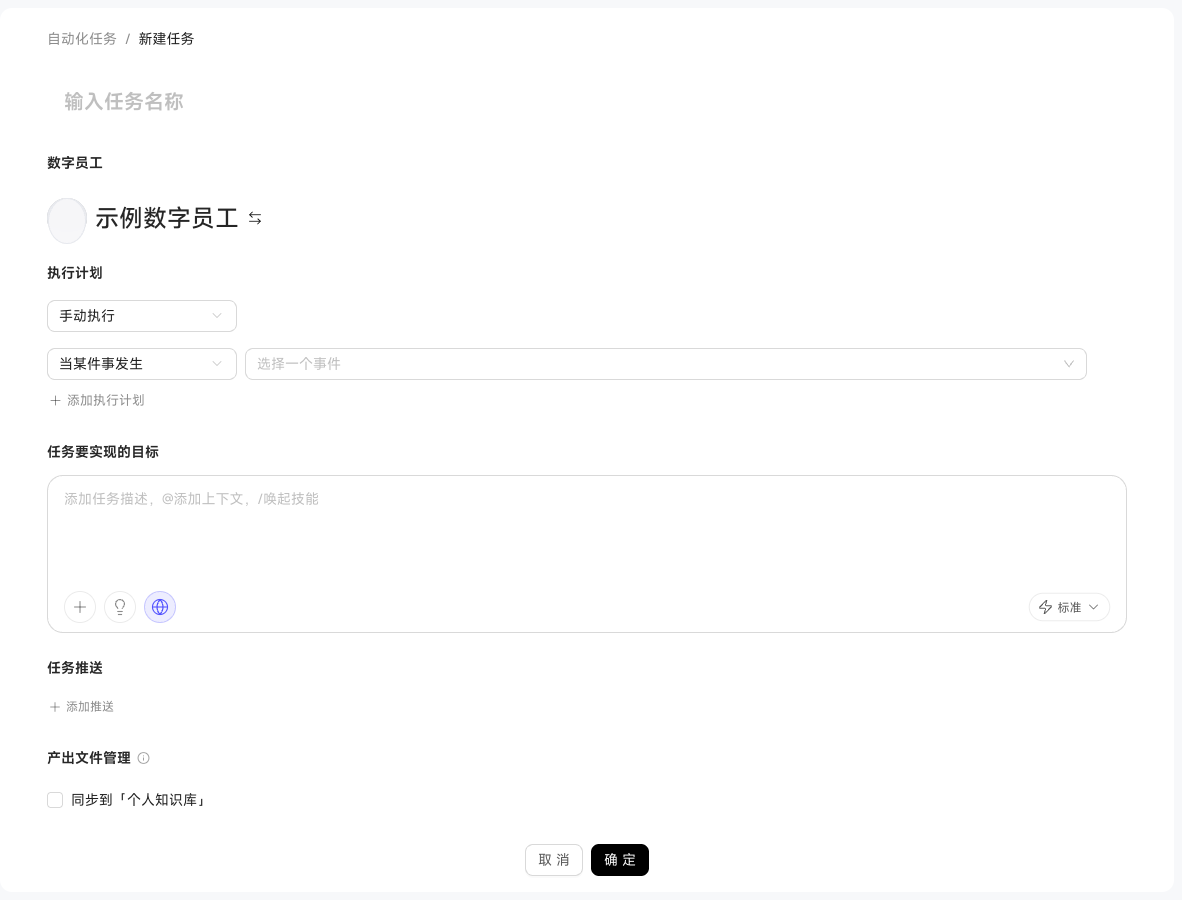
Semantic or IM conditions defined by the event appear read-only; this area is hidden when no fixed conditions exist. Add "My Additional Conditions" by describing semantic condition groups in a sentence, or adding keywords and intelligent evaluation for IM events. On save, the system rechecks that fixed objects and properties remain within the Digital Workers' graph scope and that the current user has the required row and column permissions.
② IM monitoring: When a customer posts negative product feedback in a service group, summarize it and send a "Customer Sentiment Alert" to the account owner.