Manage Members and Capabilities
Manage Members
Add Members supports selecting users individually or by user group. Selecting a group still adds its individual users. Remove existing members through Manage Members, which supports selecting all for bulk operations.
Space members have three roles: Creator, Administrator, and Member. Administrators manage members, Digital Workers, capabilities, space resources, and space tasks. Only the creator can change the Business Scope or Dissolve Space. Members participate in collaboration and can create work items and tasks or add resources, but cannot configure the space. If the creator's account is deleted, the earliest-joined administrator takes over automatically. If there are no administrators, the earliest-joined member takes over. If no members remain, the space is dissolved.
Before removing a member, check private resources that need to be retained and the responsibilities to hand over. Removed members immediately lose space access. Their private automation tasks and private free exploration work items are permanently deleted. Their assigned work items, to-dos, template configurations, and other automation tasks enter the transfer process.
The Members section in space information separates members from Digital Workers. The member group provides Add Members and Manage Members. The Digital Worker group shows the current count; use Manage Digital Workers to add or remove them.
A space can have up to 10 Digital Workers and must retain at least one.
Assign Responsibility Recipients
If the deleted member has tasks under My Distributions, you must manually select a recipient, who must be a super administrator.
Handover items in each space default to the space creator or work item owner. The space creator can transfer them again in bulk under Space Information → Members → Pending Handovers.
Handle Transfers and Exceptions
When a Transfer Exception occurs, open the failed item in Member Management for a tenant deletion, or Space Information → Members for a space removal. Check the reason, then retry or transfer to another active member using the available operations. Bulk handling is also supported. Automatic system transfer items only support retrying. Refresh after submitting a retry to check the final result.
Recipients receive Message Center notifications for transferred work items, workflow templates, or automation tasks. Distributed tasks send separate notifications. After receiving an automation task, authorize it as yourself and enable it, because personal credentials and data permissions are not inherited. A task awaiting authorization or still disabled does not mean the responsibility transfer failed.
Capabilities
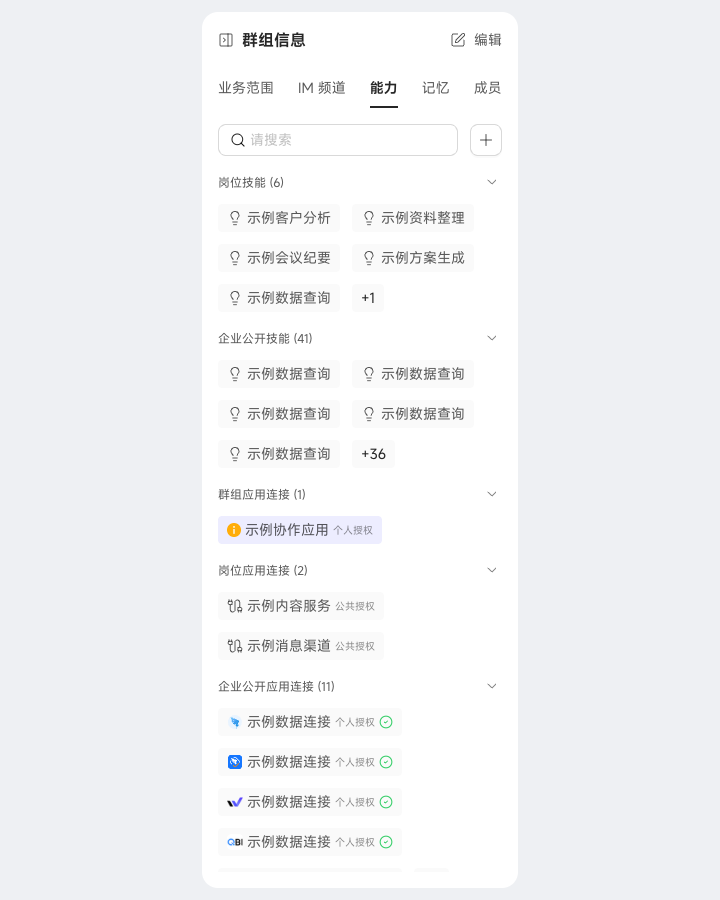
Configure shared Skills for the Collaboration Space. Creators and administrators add, edit, and delete them; regular members can view and invoke them.
Open Capabilities in space information, click Add Capability → Add Skill, select a personal Skill under Copy My Skills to the Group, and confirm. This creates an independent group copy. Editing or deleting the group copy does not affect the personal Skill, and later personal changes do not synchronize to the group copy.
If no personal Skill fits, click Create Group Skill, then choose Create in Chat or Import Locally to prepare a Skill for this space.
Edit or delete group Skills as space tasks change. Check active tasks before deleting a Skill. Role Skills come from the space's Digital Workers, and enterprise public Skills come from the enterprise; neither can be deleted in the space.
Capabilities also manages available app connections. Role connections from Digital Workers and enterprise public connections are added automatically. Administrators can also make their own personal connections available to the space.
Each connection's authorization mode depends on its authentication method. Connections with fixed credentials or no authentication are marked Shared Authorization; all members use the credentials in the connection configuration. Connections that require users to authorize individually are marked Personal Authorization. The list indicates missing authorization and guides each member through it. Each member must authorize before use, and the status stays consistent with personal mode.
When creating a space automation task, you can select only connections that are currently authorized.