
Manage Space Memory and Resources
Space Memory
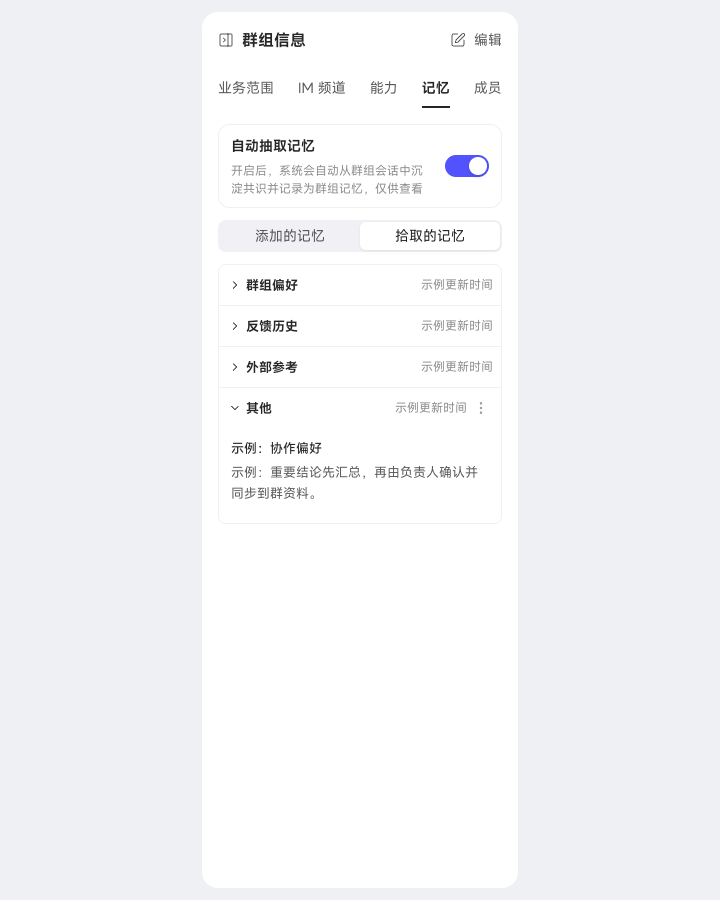
Memory stores shared space knowledge in two sections: Added Memory and Collected Memory.
Added Memory is maintained manually to record space conventions that Digital Workers should remember long term. Click Edit at the bottom right of the panel to update it.
Collected Memory is extracted automatically from space conversations. Use Automatically Extract Space Memory to enable or disable extraction. Entries appear in four fixed groups: Space Preferences, Feedback History, External References, and Other.
Only the space creator and administrators can edit or clear memory or toggle automatic extraction. Other members can only view it and do not see the operation controls.
Space Resources
When creating a resource category, add a description explaining its contents and any usage conventions. Organized space resources can be referenced with @ in chats.
Use Add Resource to choose from seven sources and prepare shared materials for your team.
| Source | Description |
|---|---|
| Meeting Recordings | Record live meetings, upload recordings, or collect Feishu, DingTalk, or AliDing meeting records. |
| Local Files | Upload documents, spreadsheets, images, and other files. Reference them in the space after processing. |
| Online Documents | Collect online documents from AliDing, DingTalk, or Feishu. |
| Chat History | Collect AliDing, DingTalk, Feishu, or WeCom chat history and configure a collection schedule. |
| Online Notes | Enter text directly as space knowledge. |
| Public Webpages | Collect the body text of publicly accessible webpages. |
| Import Knowledge | Bring in knowledge or folders from personal or enterprise Knowledge Bases. |
Imported content remains linked to the original knowledge. New knowledge added to an imported folder automatically synchronizes to space resources and is visible to all space members. Removing the import hides it from space resources without deleting the original Knowledge Base content.
When adding resources, apply tags by project, customer, or topic so members can organize materials using shared conventions.
The resource list supports bulk organization. Select items to Move in Bulk or Delete in Bulk. When deleting a folder, choose Recursively Delete All to delete subfolders and their contents, or Delete Folder and Move Resources to Root to retain the resources at the root.
View Resource Changes
Space creators and administrators can enable Change History under Settings → Space Resource Settings. Once enabled, updates to Markdown files, TXT files, and online notes generate AI change summaries. Members can view update details and summaries in knowledge details. Change history does not retain historical document versions.