
Submit to an Enterprise Knowledge Base
When a personal resource would benefit your whole team, submit it to an Enterprise Knowledge Base to share it.
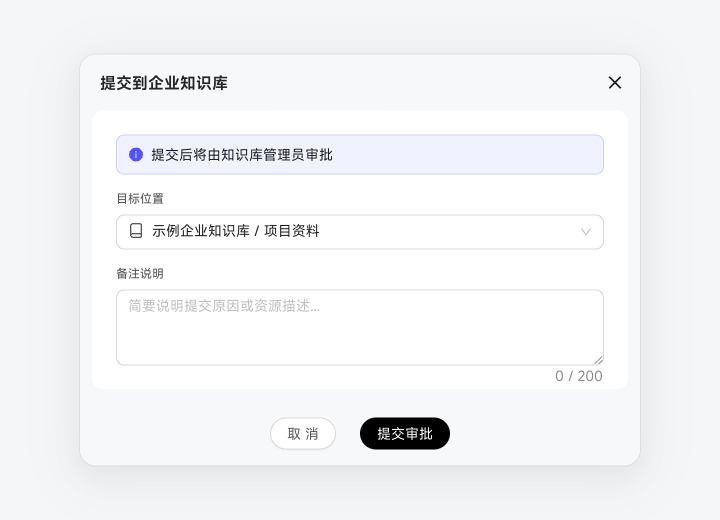
Select the resources and click "Submit to Enterprise Knowledge Base".
Select the target directory in the Enterprise Knowledge Base. With write permission, submission may be accepted directly; otherwise, it enters an approval process.
Explain why the resource is worth sharing. An administrator reviews it under "Enterprise Knowledge Base → Submission Approvals". Once approved, it enters the Enterprise Knowledge Base and becomes available to everyone. Rejections include a reason.
The "Shared by Me" tab lists all submissions with Pending Approval, Approved, Rejected, or Withdrawn status. Withdraw a submission if needed.
You can submit personal resources while they are still parsing. The enterprise side reparses the original file without waiting for personal parsing to finish. Each "Shared by Me" entry shows the resource's personal Knowledge Base directory. Click "Locate" to jump to that directory or its knowledge details.
Personal Knowledge Base and sharing entry
The workspace knowledge area has "Personal Knowledge Base" and "Enterprise Knowledge Base" tabs. All Digital Workers can use your personal resources across positions. "Shared by Me" is a separate entry on the right that shows all your enterprise submissions and their statuses.
Manage Enterprise Knowledge Bases in the workspace
The Enterprise Knowledge Base tab shows cards for Knowledge Bases you can access, including their description, creator, and visibility (public or specified scope). The upper right provides Search Knowledge Bases, Pending Approvals, and New Knowledge Base.
Every card offers "View Details". Knowledge Bases you create or manage also have Edit, Visibility, Associate Digital Workers, and Delete actions. Their details show knowledge in all statuses and offer Retry All for failures. Without management permission, only successfully parsed knowledge appears, with "Add to Chat" as the sole action.
Select knowledge items to display a bottom action bar for bulk moves or deletion. When deleting a directory, choose "Recursively Delete All" to remove subdirectories and resources, or "Delete Directory and Move Resources to Root" to retain resources at the root.
"Pending Approvals" is visible to all users, with Pending and Processed tabs showing the knowledge name, target Knowledge Base, source, submission time, submitter, and status. Ordinary users see pending items only for Knowledge Bases they administer. Super administrators and users with the Knowledge Base Super Administrator permission see all items.
Keep personal records after sharing
Submitting a resource to an Enterprise Knowledge Base leaves it in your personal Knowledge Base. The list marks it "Shared" and shows its current submission status: Pending Approval, Approved, Rejected, or Withdrawn. Share whole directories or individual items, keeping the rest private.