
Browse and Organize Resources
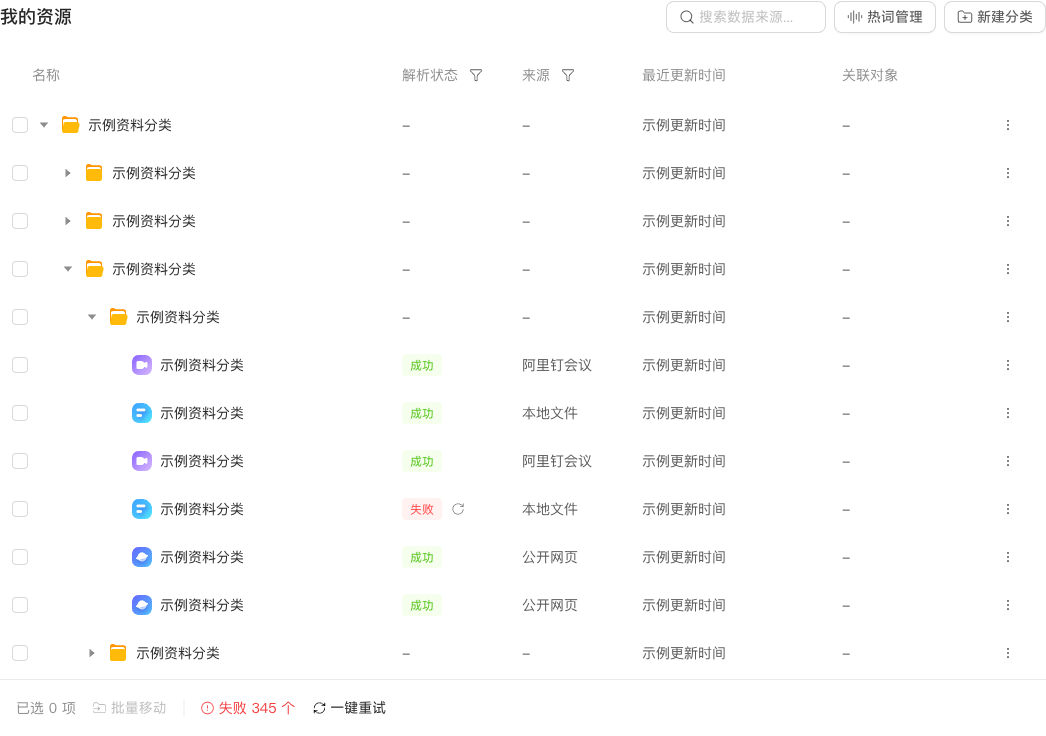
The resource page supports these management operations:
- Create Folders: Group resources by topic, customer, or project.
- Move in Bulk: Select multiple items and move them to a target folder together.
- Rename: Change a file's display name without affecting AI retrieval.
- Delete in Bulk: If the selection includes folders, choose Recursively Delete All to delete subfolders and their contents, or Delete Folder and Move Resources to Root to keep resources at the root.
- Filter: Filter by source (file, meeting, online document, chat history, online note, or Output) or parsing status.
- Update Messages for chat history, or Reparse files and online documents.
Replace a File
File resources support replacement with the same file type. Select Replace File from the operation menu and upload the new file. The system reparses it automatically without requiring you to delete and recreate the resource.
Continue Unsaved Edits
Click Edit in resource details and Save when finished. If you leave with unsaved changes, they are temporarily stored in the current browser. When you edit the same resource again, choose Restore Draft to continue.
A browser draft is not a saved version. It cannot be recovered after clearing browser data, switching devices, or draft expiration. Save important content promptly.
Category Descriptions and Change History
When creating a category, add a description explaining its contents and any usage conventions.
After enabling Change History under Personal Knowledge Base → Settings, updates to Markdown files, TXT files, and online notes generate AI change summaries. View update information and summaries in Change History in knowledge details. Historical document versions are not retained, so this cannot restore older files.
Meeting Hotwords
Use Hotword Management in the Personal Knowledge Base to configure technical terms, product names, people's names, and other words that improve meeting transcription accuracy. Hotwords apply only to meetings. Set a weight for each hotword; higher weights make recognition more likely. Add them individually or in bulk.
Chat History Details
Chat history knowledge has four tabs: Summary, Messages, Chat Files, and Chat Images. Chat Files collects files from the conversation. Chat Images displays thumbnails of its images and videos.
Close Knowledge Details
Use Close to stay at the current list and scroll position while returning the right panel to its empty state, ready to browse other resources.